
Redaction and sanitising
Redact PDF documents so that the content is removed from the file
If you need to redact a PDF, for example before filing it with the court, sending it to the opposing party or disclosing it to an authority, a black box is not enough. PageDream PDF actually removes the content beneath the marked areas from the file, verifies the result and, if you wish, sanitises hidden data such as metadata. Processing takes place entirely locally on your computer.
Free without signing in. Try Pro for 14 days with a free account. For Windows; a macOS version is in preparation.
A black rectangle placed over text is merely a cover. The underlying text remains in the file and can often be made visible again by selecting and copying it, through full-text search or by removing the cover. For confidential information in pleadings, exhibits or disclosures, that is not sufficient.
PageDream PDF therefore separates two steps. First, passages are marked for redaction, manually, by means of search patterns or on the basis of suggestions. Only when the redaction is applied are, by default, just the marked areas removed: characters under the areas are deleted from the page content, image pixels under the areas are overwritten in the image itself, and annotations in the area and replacement texts are removed. The rest of the page remains text and searchable. An independent text reader then checks that no text remains under the areas. An overview of all other tools is available on the features page.
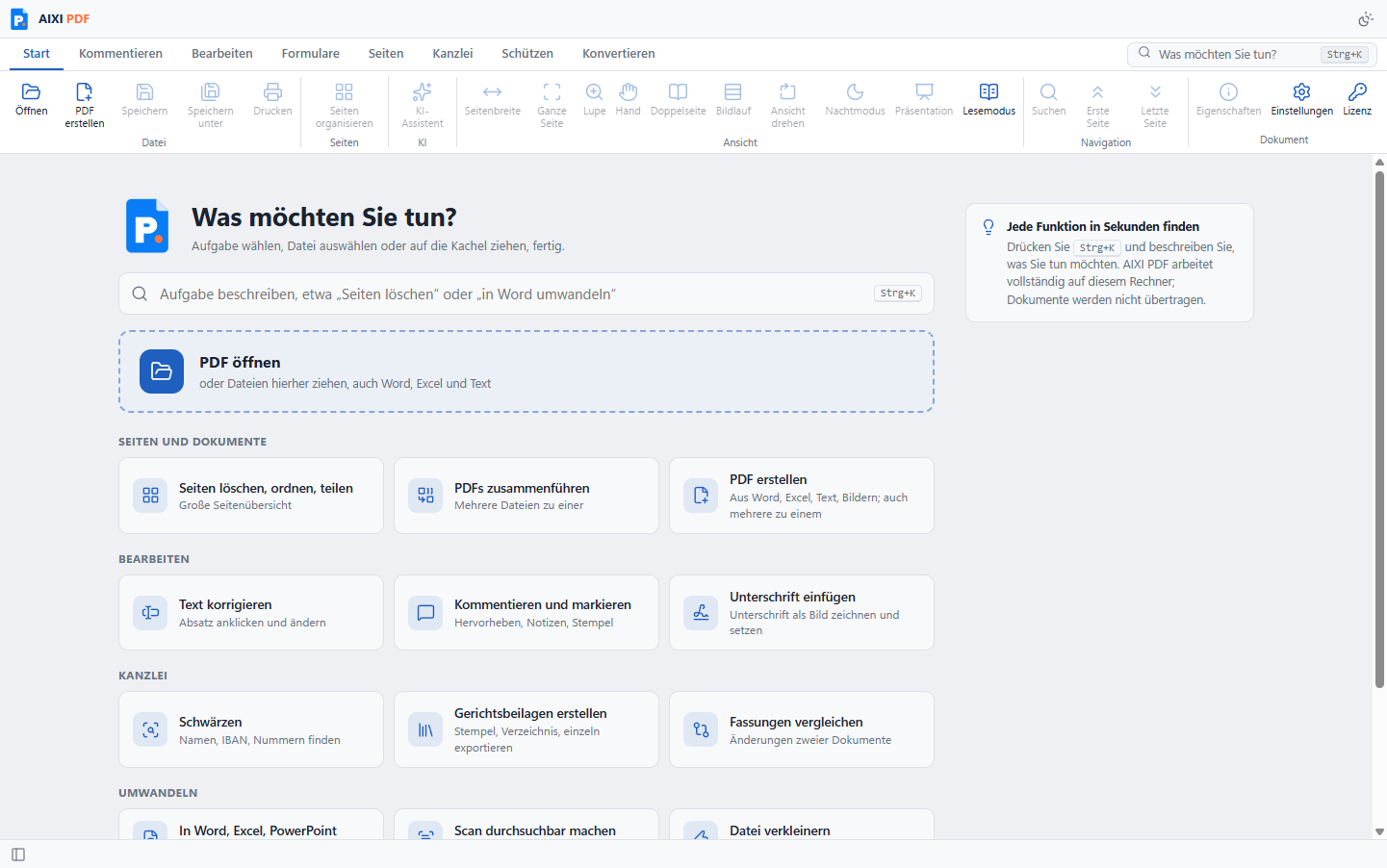
How to redact a PDF in PageDream PDF
- Mark passages Drag the redaction tool across text or an area. The passages are initially only marked; the document itself remains unchanged until you apply the redaction, and marks can be discarded again.
- Search with patterns Have recurring data found automatically: freely entered terms and names, IBANs with check digit validation, email addresses, telephone numbers, Austrian social security numbers, company register numbers (FN), VAT identification numbers (UID), dates, credit card numbers and Austrian court case numbers.
- Have names suggested PageDream PDF detects names of persons and companies automatically and locally on your computer and suggests them for redaction. The suggestions are marked; you decide whether they are applied.
- Review the matches Check the marked matches in the document. Search patterns and suggestions capture typical formats, but not every conceivable form; add any missing passages manually.
- Apply the redaction Choose the colour of the areas and an optional label. By default only the marked areas are removed, and the remaining text stays searchable. Alternatively, you can have the affected pages rebuilt entirely as images.
- Note the independent check After the redaction has been applied, an independent text reader checks that no text remains under the areas and that searched terms no longer appear. If a page cannot be processed precisely, for example because of drawn signatures, embedded graphic objects or certain scan formats in the area, only that page is rebuilt as an image; the program names it.
- Remove hidden data In the same step, have metadata, author and time information in annotations, scripts and embedded files removed. The redacted document is saved as a separate file; the source file remains unchanged.
- Keep the audit report and check yourself Optionally, an audit report is created as a PDF listing the affected pages, the number of passages and the checksums (SHA-256) before and after redaction, without the redacted content itself. Carry out a final check of the result yourself before passing it on.
Why proper redaction matters for law firms
Lawyers are bound by professional secrecy, and personal data of third parties are subject to the GDPR. If a document with merely covered information is passed on, that information has been disclosed, even if it cannot be seen on screen. Once the document has been sent, such an error can generally no longer be undone.
Typical cases include documents containing bank details, health data or the names of uninvolved persons, contractual documents in proceedings with confidentiality interests, and documents for authorities. If you assemble court exhibits, it is advisable to redact the documents concerned before stamping them. Before electronic filing, the redacted file can also be checked against the technical requirements for beA or US federal courts with the pre-filing check.
The tool supports professional diligence but does not replace it. Under the licence terms, before passing on a redacted document the user must check personally whether all content to be protected has been captured; this applies in particular to content identified by search patterns.
What happens technically when the redaction is applied
By default, PageDream PDF removes only what lies under the marked areas: characters are deleted from the page content, image pixels are overwritten in the image itself, and annotations in the area and replacement texts are removed. The remaining text on the page stays text and can therefore be searched and copied. An independent text reader then checks that no text remains under the areas and that searched terms no longer appear.
If a page cannot be processed precisely, for example because drawn signatures, embedded graphic objects or certain scan formats lie in the area, only that page is rebuilt as an image, and the program names it. Rebuilding the affected pages entirely as images remains available as an alternative. Pages that exist as images can be made searchable again with text recognition (OCR); the redacted passages remain empty.
The redacted result is saved as a separate file; the source file remains unchanged. If you wish, an audit log with SHA-256 checksums before and after redaction documents the result. Sanitising removes document information such as author, title and software, XMP metadata, author and time information in annotations, document JavaScript and embedded files.
Frequently asked questions
Is a black box over the text a redaction?
No. A rectangle placed over the text only conceals the content on screen. The text remains in the file and can often be copied, searched or revealed by removing the cover. When the redaction is applied, PageDream PDF removes the content beneath the areas from the affected pages.
Does the document remain searchable after redaction?
Yes, by default. Only the marked areas are removed; the remaining text on the page stays text and searchable. Only a page that cannot be processed precisely is rebuilt as an image, and the program names that page. You can choose to have the affected pages rebuilt entirely as images instead.
Does PageDream PDF detect names automatically?
Yes. PageDream PDF detects names of persons and companies automatically and locally on your computer and suggests them for redaction. The suggestions are marked and, like all matches, should be reviewed before the redaction is applied.
Which data do the search patterns find?
In addition to freely entered terms and names, search patterns are available for IBANs with check digit validation, email addresses, telephone numbers, Austrian social security numbers, company register numbers, VAT identification numbers, dates, credit card numbers and Austrian court case numbers. Matches are marked and should be reviewed before the redaction is applied.
Does redaction also work on scanned documents?
Areas can be marked manually on any page, including scans. Search patterns, by contrast, require a text layer; scanned pages should therefore first be processed with text recognition. Since recognition depends on scan quality, your own review is particularly important here.
Is the unredacted original preserved?
Yes. The redacted document is saved as a separate file; the source file remains unchanged. The optional audit report is also saved as a separate PDF file. This allows you to keep the complete file while passing on only the redacted version.
Is redaction included in the free version?
Try redacting PDFs with PageDream PDF
Download PageDream PDF for Windows and test redaction with Pro and all features for 14 days, with a free account and without payment details.