
Organise pages
Organise PDF pages: merge, split and reorder
A pleading with exhibits rarely comes from a single file. With PageDream PDF you organise PDF pages in a large page preview: you change the order, rotate, delete and duplicate pages, insert pages or entire documents, extract excerpts, and merge and split PDF files. Everything takes place locally on your Windows computer, without an account and without a cloud.
Free without signing in. Try Pro for 14 days with a free account. For Windows; a macOS version is in preparation.
The organise pages view shows the document as a page preview across the whole window. You move pages by dragging, insert further PDF files by dropping them at the desired position, and split a document using visible cut lines between the pages. Pages deleted by mistake are restored at once with Undo.
Before passing documents on, you then add page numbers with position, format and start page, and if required a watermark or header and footer. Recurring steps are applied to whole folders with batch processing. An overview of all tools is given on the features page.
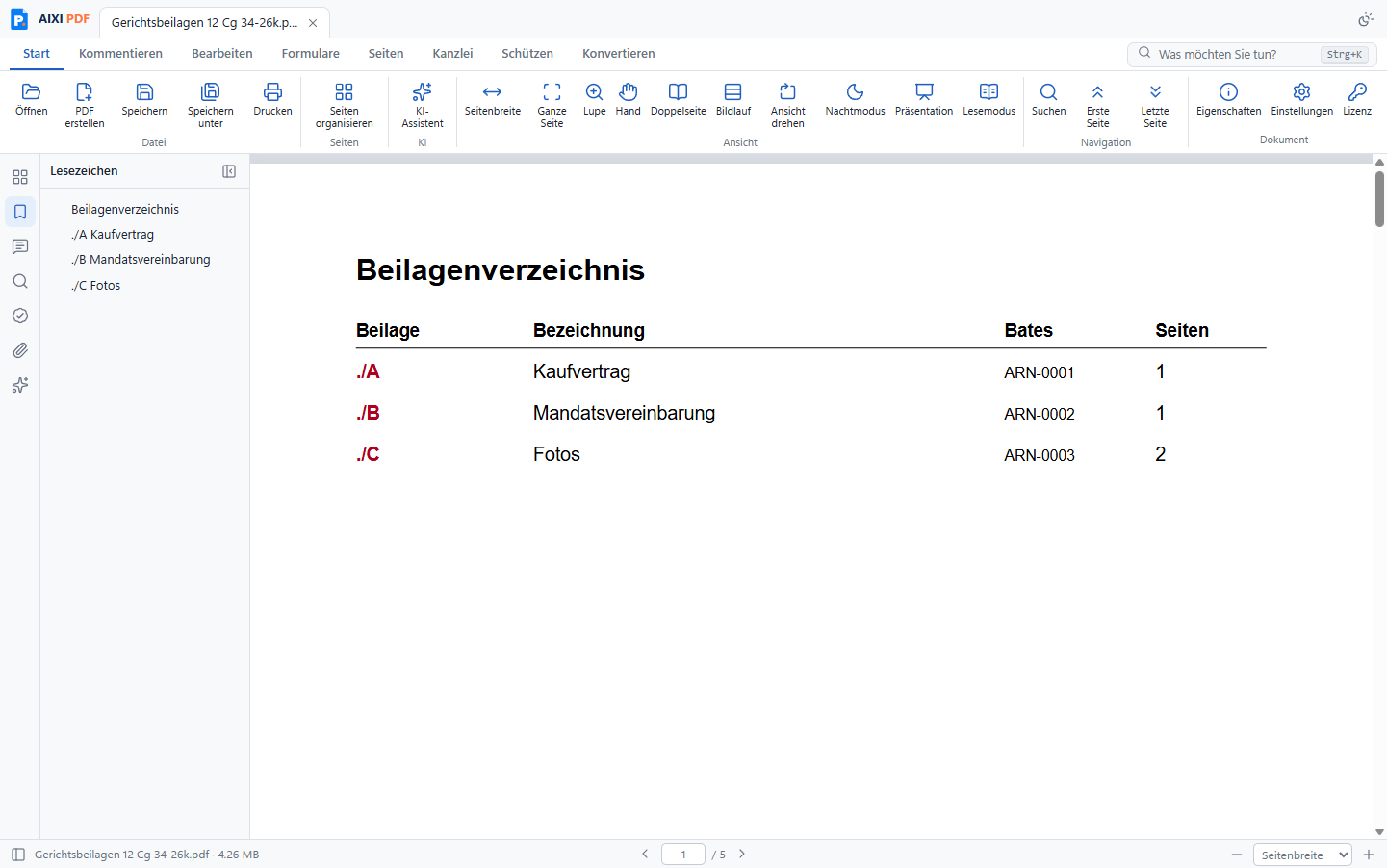
How to organise PDF pages in PageDream PDF
- Open the view Open the PDF and call up the organise pages view through the command search or with Ctrl+Shift+O. You adjust the size of the preview with the slider or with Ctrl and the mouse wheel.
- Reorder and rotate Select one or more pages and drag them to their new position. Selected pages can be rotated to the left or right, duplicated, with each copy following immediately after the original, or deleted.
- Insert pages After the selection you insert a blank page or a further PDF file, for example a letter submitted later or a cover sheet.
- Extract pages Selected pages are transferred to a new PDF file, which you save or open in a new tab. If you wish, these pages are then removed from the source document.
- Split and merge Place cut lines between the pages and split the document into several files with consecutively numbered file names. Conversely, you merge several PDF files into one document; the list can be sorted by file name.
- Add page numbers Finally, number the pages. Position, format and start page can be chosen, so that the cover sheet, for example, remains without a page number; a preview shows the result before saving.
Why page organisation matters in a law firm
Pleadings, contract bundles and file extracts are assembled from documents of different origins: scans from clients, correspondence, expert opinions, register extracts. Reliable page organisation avoids the detour of printing and rescanning and keeps the order traceable.
For exhibits to pleadings, PageDream PDF offers dedicated tools with Austrian exhibit labels, an exhibit stamp and an exhibit index; details are set out under creating an exhibit index. Page organisation prepares the individual exhibits for this, for example by rotating landscape scans or removing blank reverse sides.
As PageDream PDF works locally, confidential documents do not leave the computer while they are being assembled. Scanned documents are made searchable beforehand with text recognition (OCR), so that the merged document can also be searched in full text.
Batch processing of whole folders
Batch processing applies selected steps to all PDF files in a folder and writes the results to a target folder; the originals remain unchanged. The steps include, for example, page numbers, watermarks, Bates numbers running consecutively across all files, text recognition and conversion to PDF/A. If a single file cannot be processed, the batch continues for the remaining files.
Frequently asked questions
Are bookmarks and form fields retained when pages are reordered?
If only the order of the pages is changed, PageDream PDF rearranges the pages within the existing document. Bookmarks, form fields, a PDF/A identification, accessibility tagging, attachments and layers are retained in the process.
Can I merge several PDF files into one document?
Yes. With Merge you compile at least two files in a list, including documents that are already open, sort them by name if required and receive a single PDF. You can likewise create a combined PDF from Word, Excel, PowerPoint, images and other formats, optionally with one bookmark per source file.
How do I split a PDF into several files?
In the organise pages view, click the gap after the page at which the document is to be split; a cut line appears there. You then save the parts in a folder, with a consecutive number added to each file name, or open them in new tabs.
Can I start page numbering on the second page?
Yes. You determine on which page numbering begins and with which number. Six positions, various formats and a custom text with placeholders for the page number, last page number, date and file name are available; for double-sided printing the position can be mirrored.
Which licence tier do I need?
You use page organisation without sign-in and without an expiry date in the free version: merging, splitting, moving, rotating, page numbers, the watermark function and password protection are free of charge; saved, printed and sent documents then carry a discreet footer "PageDream.io · powered by aixi" with logo on every page. With Pro you work without the footer. Details are given on the pricing page; the program is available from the download page.
Try page organisation in PageDream PDF
Download PageDream PDF and organise pages free of charge and without sign-in, using your own documents.