
Court exhibits
Create a court exhibit index and stamp your exhibits
With PageDream PDF you create, in a single step, a court exhibit index with case number and consecutively stamped court exhibits from individual PDF files. The labels follow Austrian practice with ./A, ./1 or ./I depending on the party; for proceedings in Germany, the labels Anlage K 1 or B 1 are available as an option. Exhibits already filed can be continued seamlessly.
Free without signing in. Try Pro for 14 days with a free account. For Windows; a macOS version is in preparation.
In Austria, documents are commonly labelled according to the party submitting them: the claimant, and likewise a prosecutor or applicant, uses capital letters (./A, ./B, ./C), the opposing party Arabic numerals (./1, ./2, ./3), and other persons and third parties Roman numerals (./I, ./II, ./III). In Germany, the labels Anlage K 1, K 2 for the claimant and Anlage B 1, B 2 for the defendant are customary, and Anlage S 1 for intervening parties.
Anyone who submits documents several times in the same proceedings must continue the numbering across all pleadings. This is precisely where errors occur in practice, such as labels assigned twice or skipped. PageDream PDF reads an exhibit index previously created with the program and continues directly with the new exhibits.
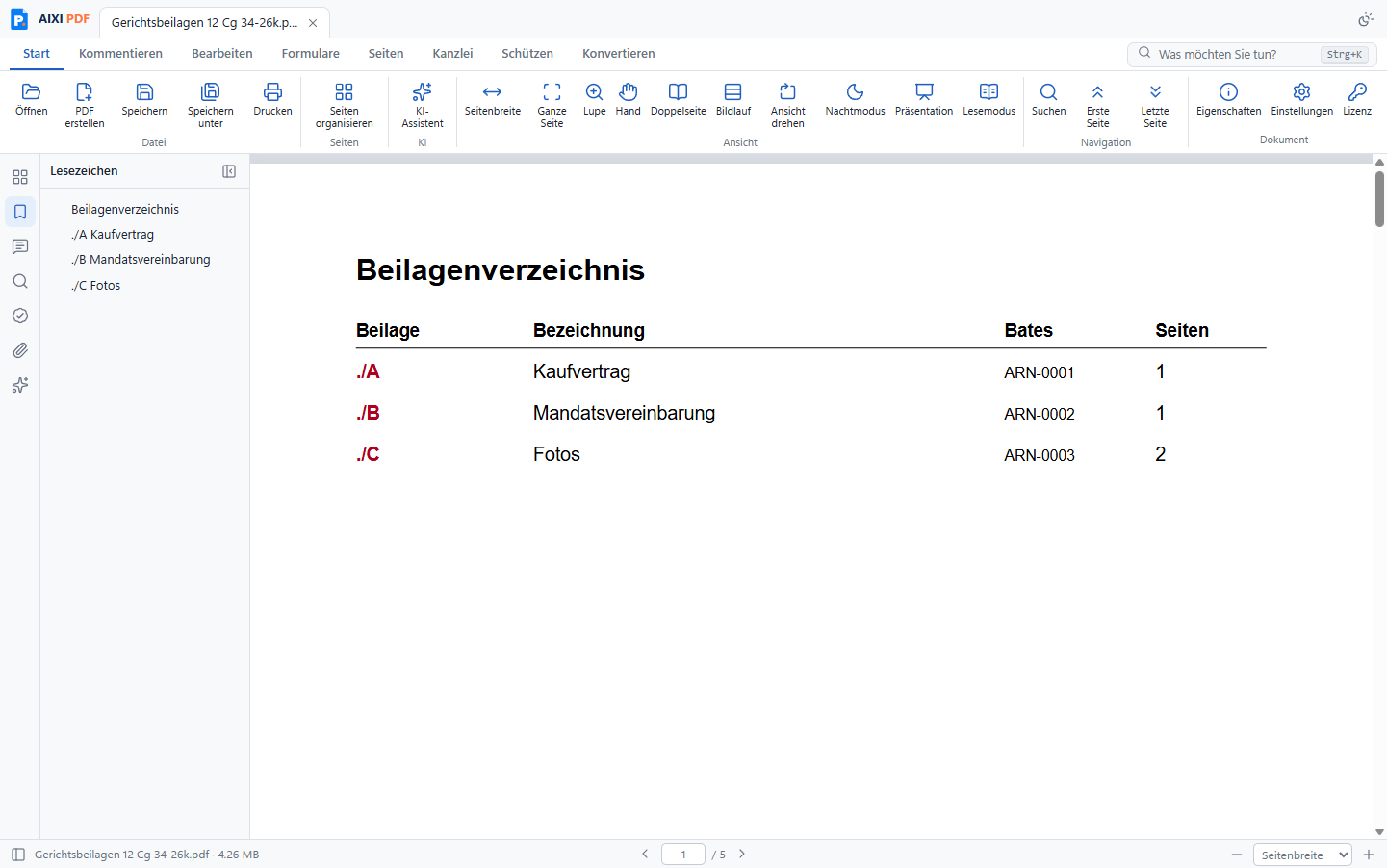
How to create a court exhibit index with PageDream PDF
- Assemble the files Add the documents as PDFs and arrange them in the desired order. The exhibit label can be adjusted manually for each file if required.
- Choose the scheme Select the labels according to the submitting party: ./A, ./1 or ./I in line with Austrian practice, or Anlage K 1, B 1 or S 1 for Germany. Neutral schemes such as Beilage 1 or Anlage A are also available.
- Continue or start afresh To continue, select the previous file with an exhibit index created with PageDream PDF; the new exhibits follow on and the index is extended accordingly. If no such index exists, enter the first new exhibit, for example D, 4 or IV.
- Set the index and stamp Enter the case number and the title of the index. The exhibit stamp shows the label and, if you wish, the firm name and the firm logo, either on the first page only or on every page of the exhibit.
- Choose the output Create a combined file with the index and all exhibits, in which each exhibit receives its own bookmark, and optionally, in addition, the index and each new exhibit as an individually stamped file.
- Bates numbers and margin markers Optionally, each page of the new exhibits receives a consecutive Bates number, which also appears in the index. Mark essential passages in the exhibits with the margin marker so that the court and the opposing party can find them quickly.
Why a well-ordered exhibit index saves time and queries
A complete exhibit index helps the court and the opposing party find their way and avoids queries. The index generated by PageDream PDF states the case number and, for each exhibit, the label, the description of the document and the number of pages, and where Bates numbering is used, the first Bates number as well.
Doing this by hand with a word processor, stamp and scanner is error-prone and time-consuming, especially with extensive bundles and tight deadlines. A uniform exhibit stamp with the firm name and logo also gives all of the firm's pleadings a consistent appearance.
Before stamping, confidential information in individual documents can be redacted; with the tools to organise pages you prepare documents, for example by rotating, extracting or duplicating pages. How to choose the prefix, start number and digits of page numbers is explained on the Bates numbering page; before electronic filing, check the combined file with the pre-filing check. An overview of all tools is available on the features page.
Continuing exhibits already filed
When continuing, PageDream PDF carries the previous exhibits over into the new index. If the selected file also contains the previous exhibits themselves, they are included in the new combined file. Exhibits already filed keep their Bates numbers; new numbers are assigned only to the new exhibits. The index thus remains complete and consistent across all pleadings in the proceedings.
Frequently asked questions
Which exhibit labels does PageDream PDF support?
In line with Austrian practice, ./A, ./B, ./C for claimants, prosecutors or applicants, ./1, ./2, ./3 for the opposing party and ./I, ./II, ./III for other persons and third parties. For Germany, Anlage K 1, Anlage B 1 and Anlage S 1 are available, as well as neutral schemes such as Beilage 1 or Anlage A.
Can I continue from exhibits already filed?
Yes. Select the previous file with an exhibit index created with PageDream PDF; the new exhibits follow on and the index is extended accordingly. If the previous exhibits were created in another way, enter the first new label, for example D, 4 or IV.
Can the exhibits also be saved individually?
Yes. In addition to the combined file with the index and all exhibits, the index and each new exhibit can be saved as a separate, individually stamped file. In the combined file, the index and each exhibit receive their own bookmark.
Can the exhibit stamp include our firm logo?
Yes. The stamp shows the exhibit label and, if you wish, the firm name beneath it; a logo can be placed to the left. The firm name is remembered for later exhibits. The stamp appears on the first page or on every page of the exhibit.
What does the function cost?
Court exhibits, exhibit labelling, the exhibit stamp, margin marking and Bates numbering are, like all functions of the Law firm area, reserved for the Pro licence. With a free account on pagedream.io you can try Pro with all features for 14 days, without payment details and without a subscription. The plans are on the pricing page, and the program is available from the download page.
Create court exhibits with PageDream PDF
Try the exhibit index and exhibit stamp with Pro and all features for 14 days, with a free account and without payment details.